
Unlike VirtualBox, it supports creating virtual machine shortcuts, making it easier to start with Windows.
VMWare you can still start with windows using CMD file.
Create CMD file
Before generating the code you need to find the following 2 folders:
- VMWare software installation directory:
H:\Program Files (x86)\VMware\VMware Workstation\vmrun.exe - Directory containing virtual machine partition:
H:\Users\ARTRU\Documents\Virtual Machines\Windows 11 x64\Windows 11 x64.vmx
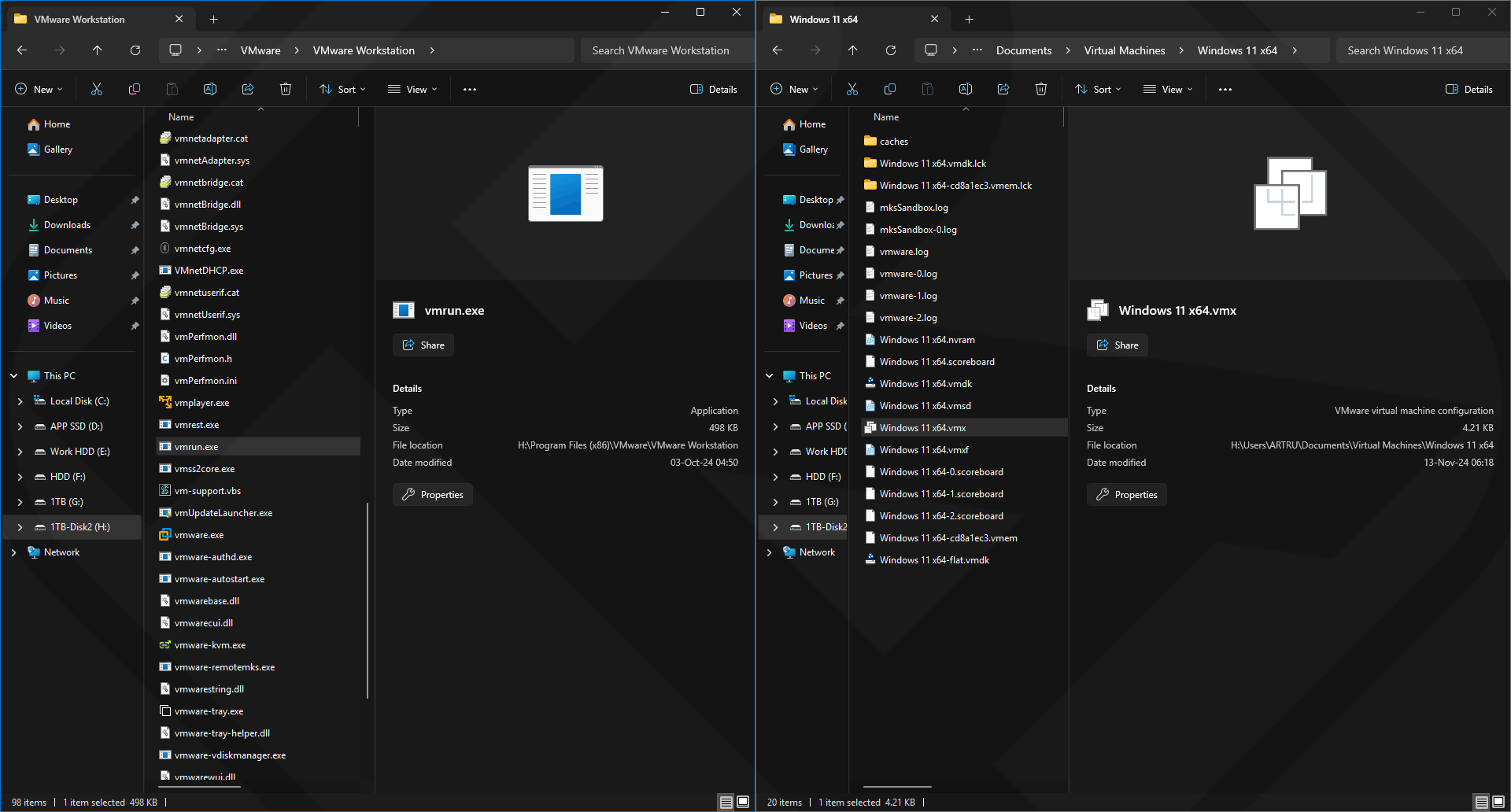
Next, create a file. cmd have arbitrary name
For example, I named it VMrun.cmd
Right click on the file VMrun.cmd → choose edit → fill in the code according to the form below and save. Remember to correct the path to the 2 folders on your computer.
"H:\Program Files (x86)\VMware\VMware Workstation\vmrun.exe" start "H:\Users\ARTRU\Documents\Virtual Machines\Windows 11 x64\Windows 11 x64.vmx" nogui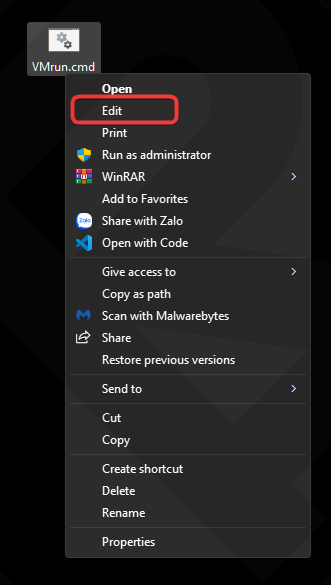
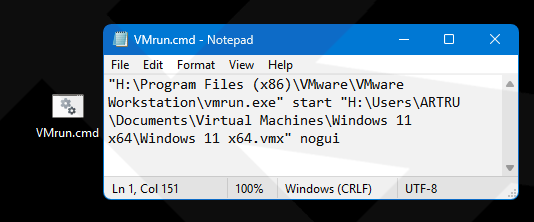
Explain:
"H:\Program Files (x86)\VMware\VMware Workstation\vmrun.exe"
Is the path to the filevmrun.exelocated in the VMWare software installation folder.start: start the virtual machine with the following path."H:\Users\ARTRU\Documents\Virtual Machines\Windows 11 x64\Windows 11 x64.vmx"
Is the path pointing to the virtual machine file with the extension ..vmxnogui: used to start the background run mode (run in background). If you want to show the VMWare interface always, delete this line.
Start with windows for created CMD file
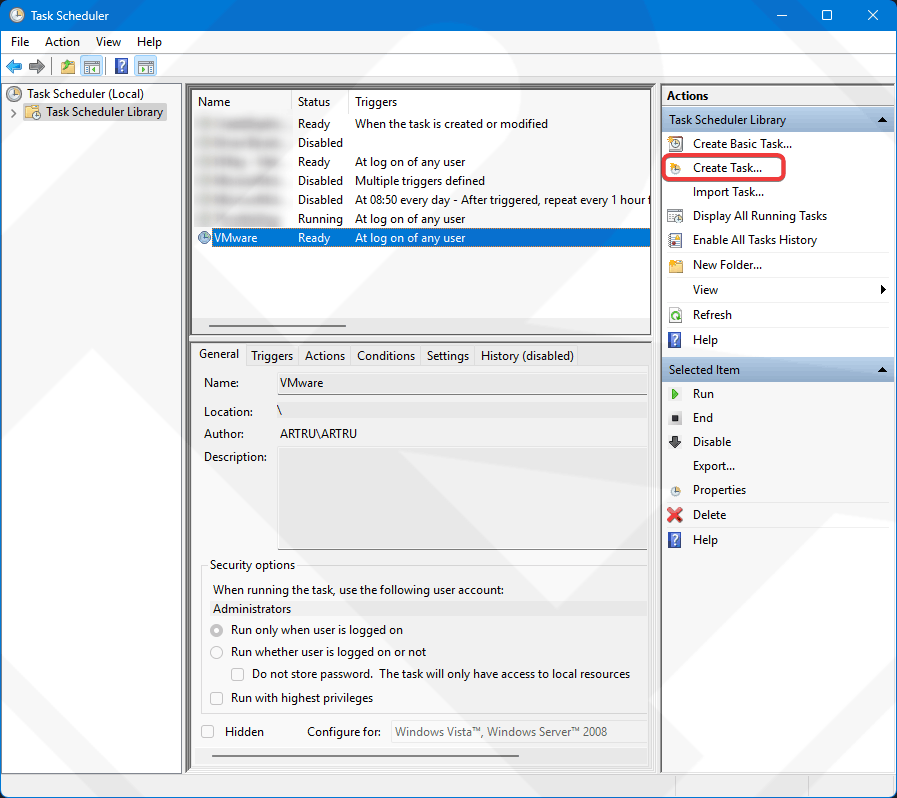
- Access
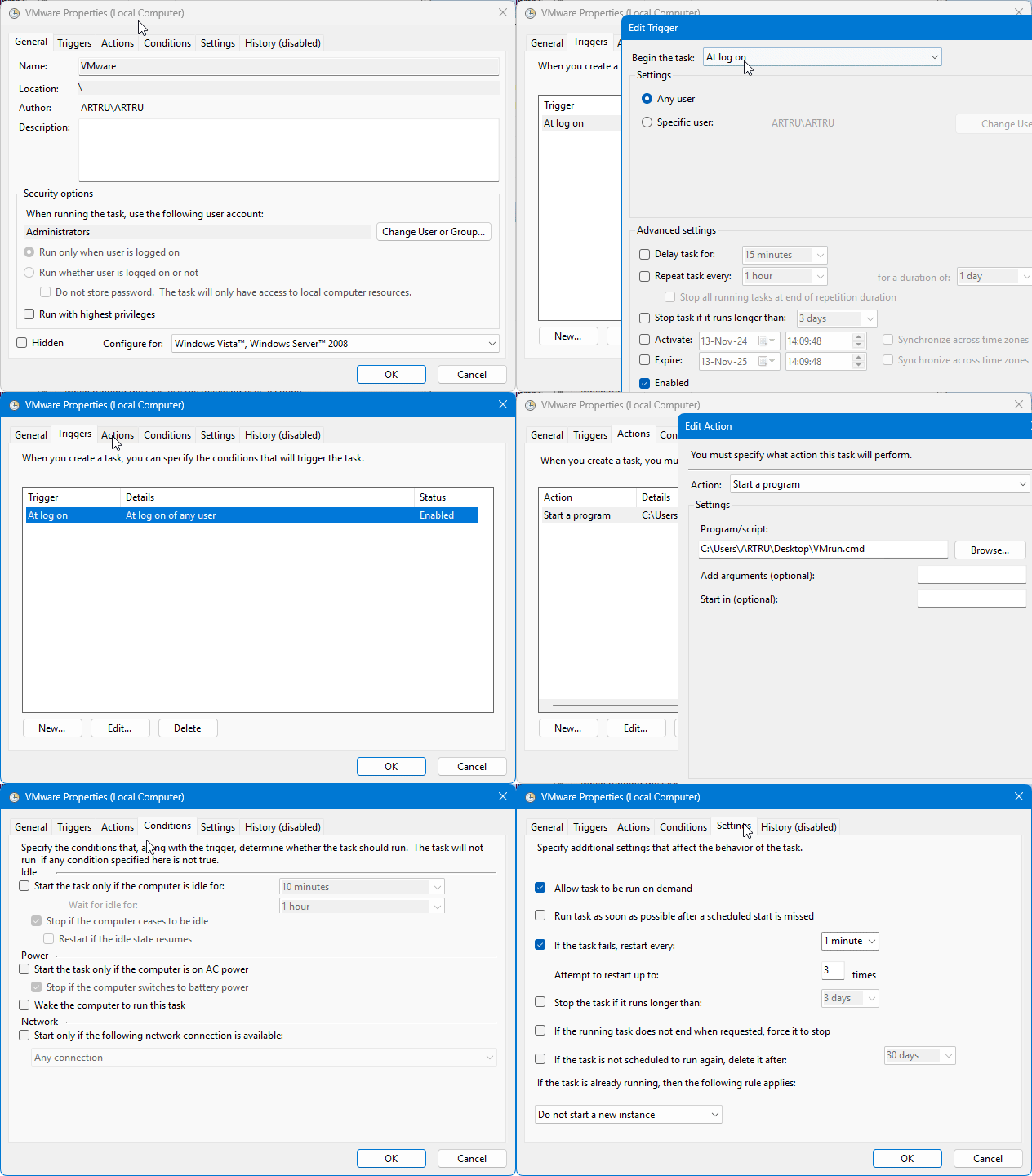
Task Scheduler→ pressCreate Task - Name the boot process at the tab
Name - Tab
Triggers→ chooseNew→ on the cardBegin the taskselectAt log on - Tab
Actions→ chooseNew→ select filecmdthat you created above. - Tab
Conditions→ uncheck all checkboxes. - Tab
Settings→ just select the first lineAllow task to be run on demand - Press
OKto save.
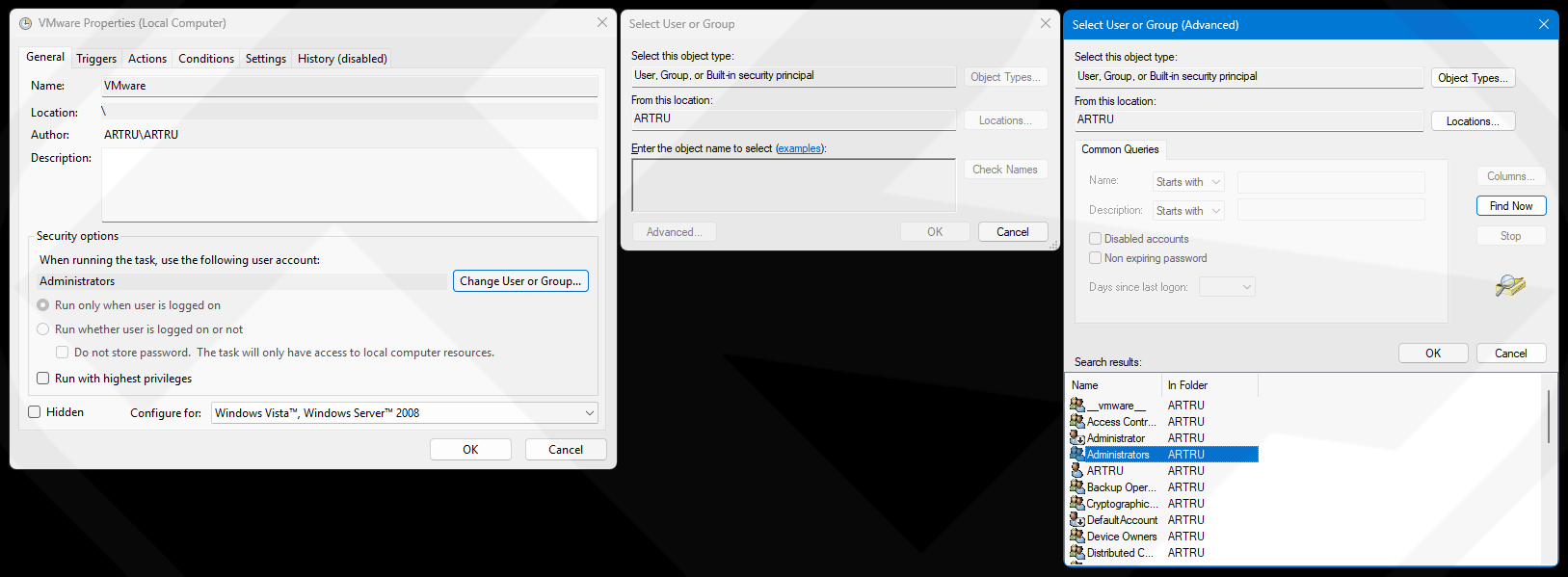
In case of error in Admin rights, you go to Change User or Group → press Advanced → press Find Now → select line Administrators Have "s" ok → Ok to save the configuration.



Comment